Quick User Guide
This is the shortest path through Wavecrate: add a source, audition sounds, mark the useful part, extract or edit it, then keep enough metadata that you can find it again.
1. Add A Source
Start with a folder that contains WAV files. Click the plus button in Sources or drag the folder into the Sources panel.
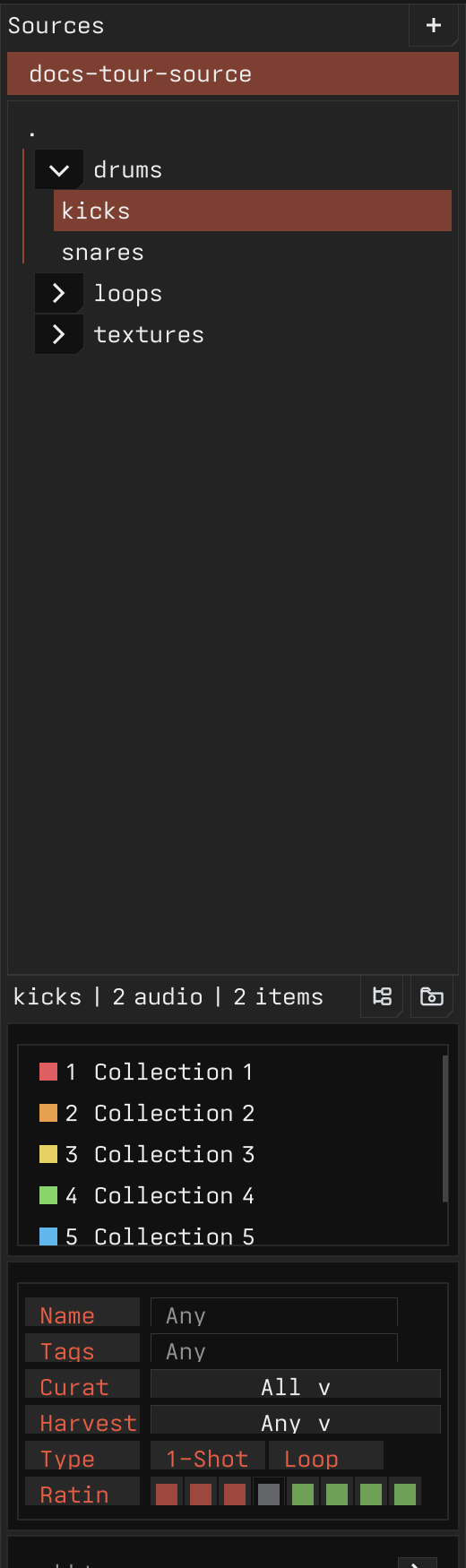
Wavecrate indexes the folder and keeps the visible browser scoped to the source and folder selections on the left.
2. Audition The List
Select a row in the sample browser and press Space to play or pause. Use Up and Down to move through the visible list.

Useful first-pass moves:
- press
]to mark a sound as Keep - press
[to mark a sound as Trash - use folder, tag, rating, collection, playback-age, similarity, and Starmap filters to narrow the list
3. Mark A Useful Region
Drag across the waveform with the primary mouse button to create a playmark selection. Use this when you want to loop, audition, copy, drag, or extract a region.

When you want an edit-specific target, create an editmark selection with the secondary mouse button. Editmarks are useful when the edit target should be separate from the play/audition target.
4. Loop, Extract, Or Copy
After marking a useful region:
- press
Lto loop the selected region - press
Eto extract it as a new WAV - press
Command-Cto copy the current waveform selection as an exported WAV clip - drag the selection handle to a folder or DAW when drag-out is supported
5. Edit Deliberately
Use waveform edit commands when the selected audio should change:
Ccrops to the selectionDtrims the selection outRreverses the selectionMmutes the selectionNnormalizes the selection or sample, depending on focus
Destructive edits can rewrite files. Wavecrate prompts before destructive edits unless Yolo mode is enabled.
6. Keep The Result Findable
Rate, tag, rename, or place extracted clips into useful folders or collections. Wavecrate is strongest when quick auditioning and small metadata decisions happen in the same pass.
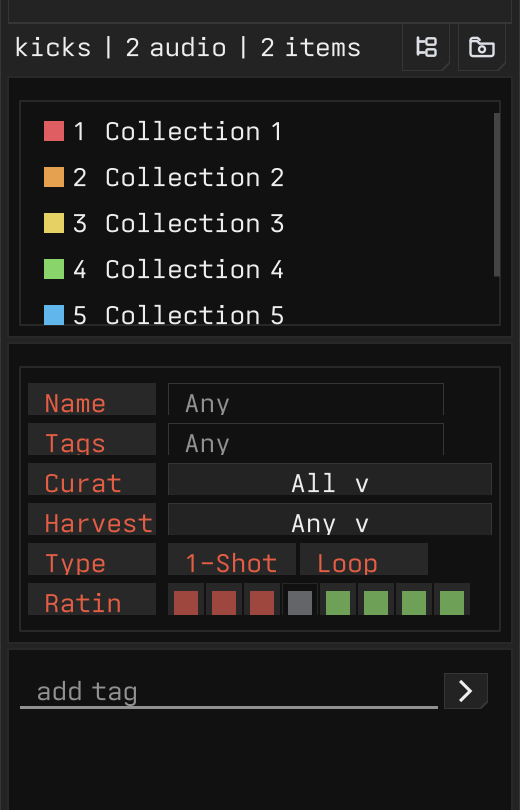
Use protected sources for original project material or long recordings that should stay safe while derived clips are created elsewhere.
Use the source, folder, sample, tag, and collection context menus for maintenance actions that are not part of the first-pass audition loop.