Browse and Audition
Wavecrate is designed for fast listening passes. Select a sample, hear it, move on, and make lightweight decisions before the creative thread disappears.
Main Browsing Surface
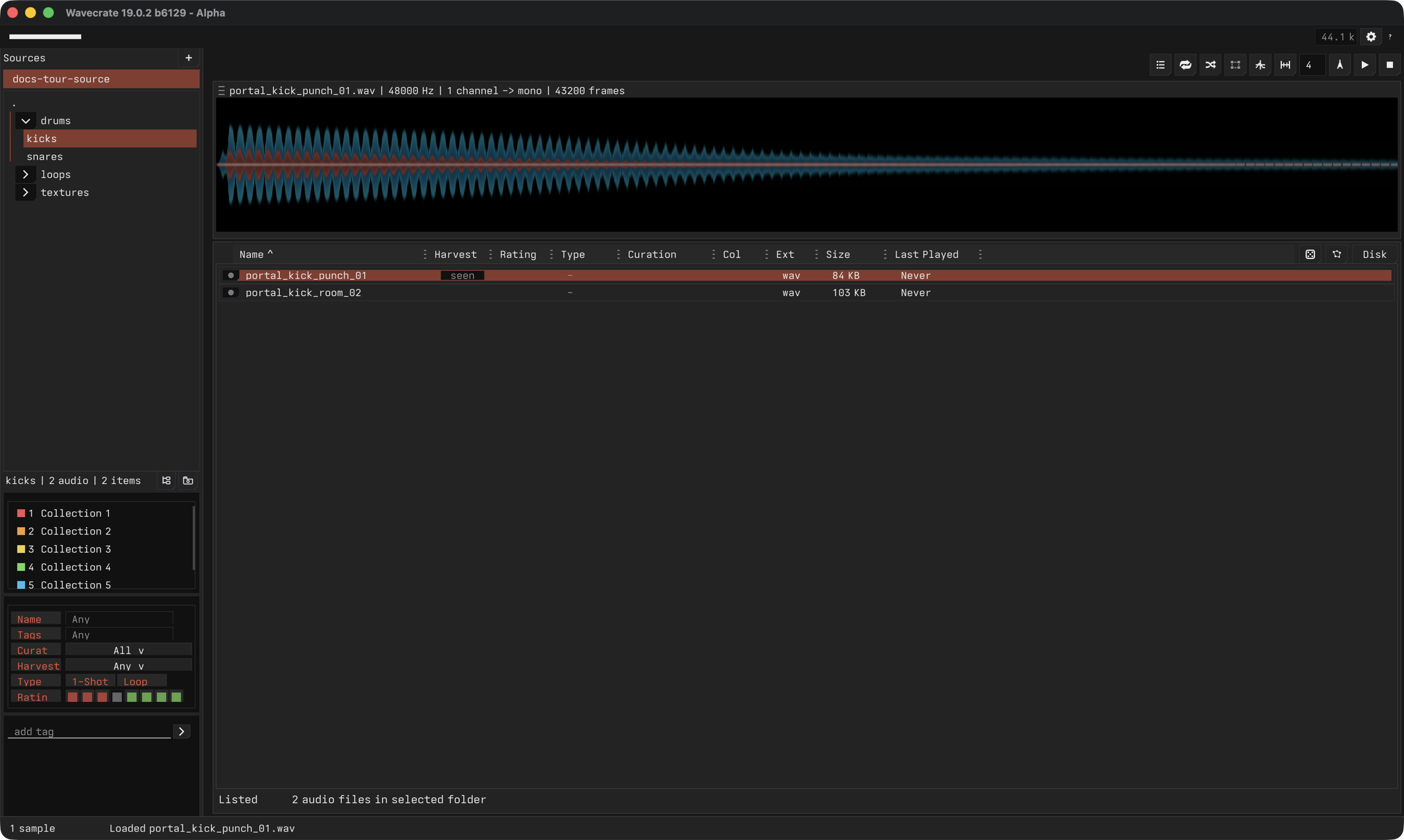
The main surface has three working areas:
- Sources and folders: add local sources, choose folders, and narrow the current browser scope.
- Waveform: inspect the selected sample, seek, loop, mark regions, and perform waveform edits.
- Sample browser: sort, filter, rate, tag, and move through visible samples.
Audition Quickly
Spacetoggles playback.Shift-Spacereplays from the last start point.Option-Spaceplays a random sample section.UpandDownmove through the visible rows.Shift-UpandShift-Downextend the sample selection.Escstops playback, closes transient UI, or clears selection depending on context.- The random controls can audition random sections or random listed samples when you want to break out of row order.
Narrow the List
Use the browser tools together:
- Folder selection limits the visible list to the chosen source area.
- Search filters by fuzzy text matching.
- Tag filters help separate keepers, trash, and untagged material.
- Playback-age filters surface never-played or stale sounds.
- Collections are temporary working buckets for the current session.
- Similarity search can focus the list around sounds related to the current sample.
- Starmap shows the same scoped results as a spatial similarity view when map data is available.
DAW Companion Loop
Wavecrate is meant to sit beside your DAW:
- Keep the track playing in the DAW.
- Audition candidate samples in Wavecrate.
- Mark the region that starts to fit.
- Copy or drag the selected clip into the DAW.
- Return to browsing without reorganizing folders mid-session.