Wavecrate Documentation
Wavecrate is a local sample-library workstation for producers who need to move quickly through large folders, audition sounds beside a DAW, cut useful regions out of long recordings, and keep a sample library honest over time.
This book is the public documentation surface for Wavecrate. It is intentionally practical: it explains what the app does, how to start using it, and where to look when something feels stuck.
Start Here
- New users should begin with Getting Started, then use the Quick User Guide for the first sample-curation pass.
- Sample-library cleanup and source safety live in Sources, Locks, and Harvest.
- File moves, source processing, and context-menu actions live in Sample Files and Source Operations.
- Tags, labels, collections, and rating passes live in Metadata, Tags, and Collections.
- Similarity search and Starmap live in Similarity and Starmap.
- Waveform work lives in Playmarks, Editmarks, and Edits.
- Toolbar-level waveform controls live in Advanced Waveform Tools.
- Audio, cache, trash-folder, and tooltip controls live in Settings.
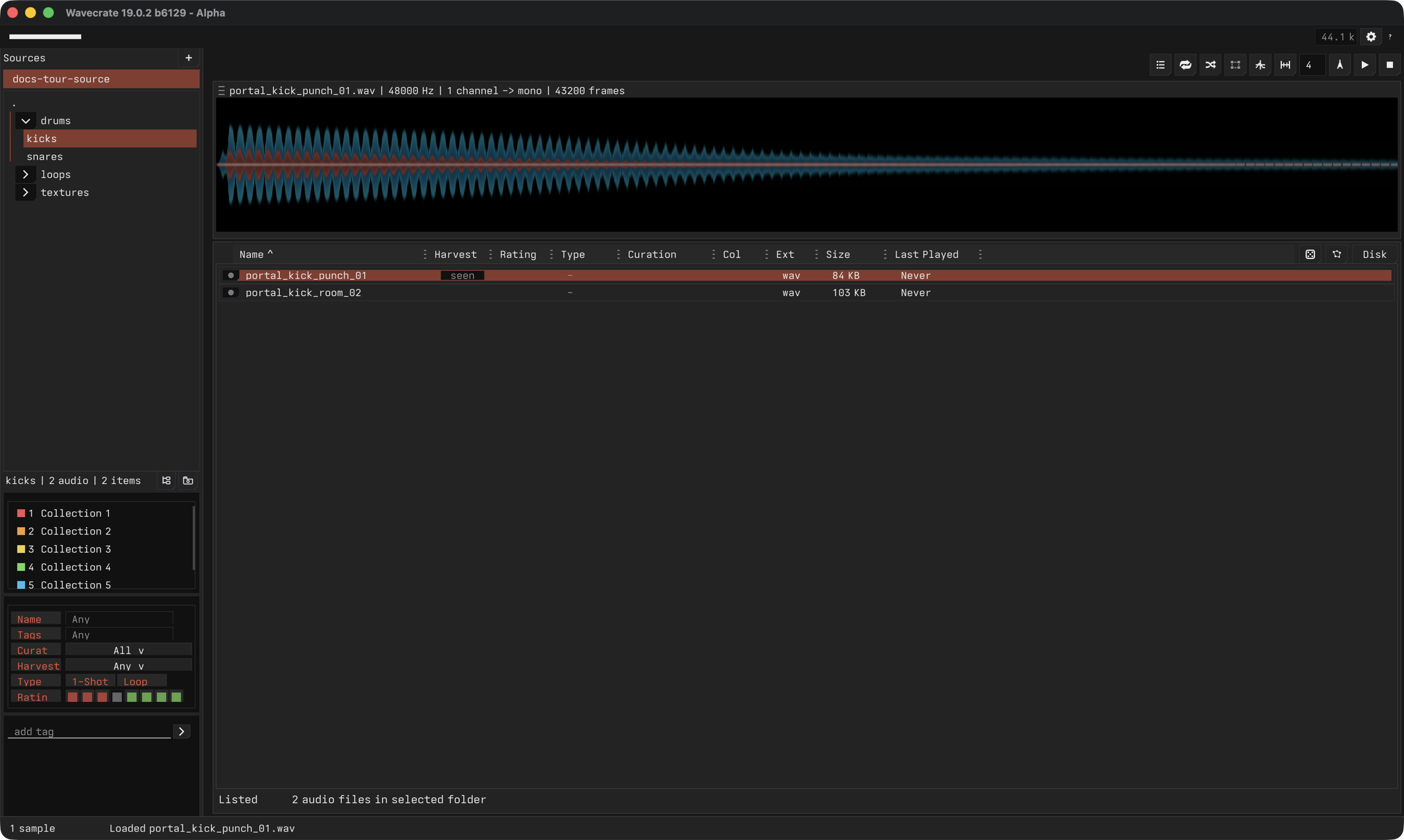
- A visual pass through the current app surface lives in Screenshots and Feature Tour.
What Wavecrate Helps With
- Browse local sample folders without hiding the original file layout.
- Audition samples quickly with keyboard-first navigation.
- Mark useful regions and extract them as ordinary WAV files.
- Make deliberate destructive edits such as crop, trim, mute, fade, reverse, and normalize.
- Rate, tag, filter, and revisit sounds as taste changes.
- Keep protected project material safe while still creating derived clips.
- Prepare similarity data so related sounds become easier to find.
- Use current-app context menus for folders, sources, samples, collections, tags, and Harvest state.
Getting Started
Install
- Open the Wavecrate download page.
- Download the latest macOS or Windows alpha bundle.
- Unzip the bundle.
- Launch Wavecrate.
- Add a sample folder from the Sources panel.
Wavecrate works with ordinary local folders. It does not upload your samples or require a cloud library.
Wavecrate alpha app builds currently support macOS and Windows. Linux is not currently supported for app installs.
Alpha warning: Wavecrate includes destructive actions that can modify, rename, move, or delete files when you choose those commands. Keep backups for important sample folders.
Add Your First Source
Use the plus button in the Sources panel, or drag a folder onto the Sources panel. Wavecrate indexes supported audio files and stores source metadata beside the source so browsing is fast after the first pass.
After a source is added:
- Select folders in the left panel to narrow the visible sample list.
- Select a sample row to load and audition it.
- Use filters, search, tags, ratings, and collections to narrow what you hear.
First Five-Minute Workflow
- Add a folder with a small set of WAV files.
- Click a sample row and press
Spaceto play or pause. - Press
Downto move through the visible list. - Drag across the waveform to create a playmark selection.
- Press
Lto loop the selected region. - Press
Eto extract a useful selected region. - Rate or tag the result so you can find it later.
Where Wavecrate Stores Settings
Wavecrate keeps app data in a .wavecrate folder inside your supported operating system config directory.
- macOS:
~/Library/Application Support/.wavecrate/ - Windows:
%APPDATA%\\.wavecrate\\
Use Options -> Open config folder in the app when you need logs, settings, or support context.
Quick User Guide
This is the shortest path through Wavecrate: add a source, audition sounds, mark the useful part, extract or edit it, then keep enough metadata that you can find it again.
1. Add A Source
Start with a folder that contains WAV files. Click the plus button in Sources or drag the folder into the Sources panel.
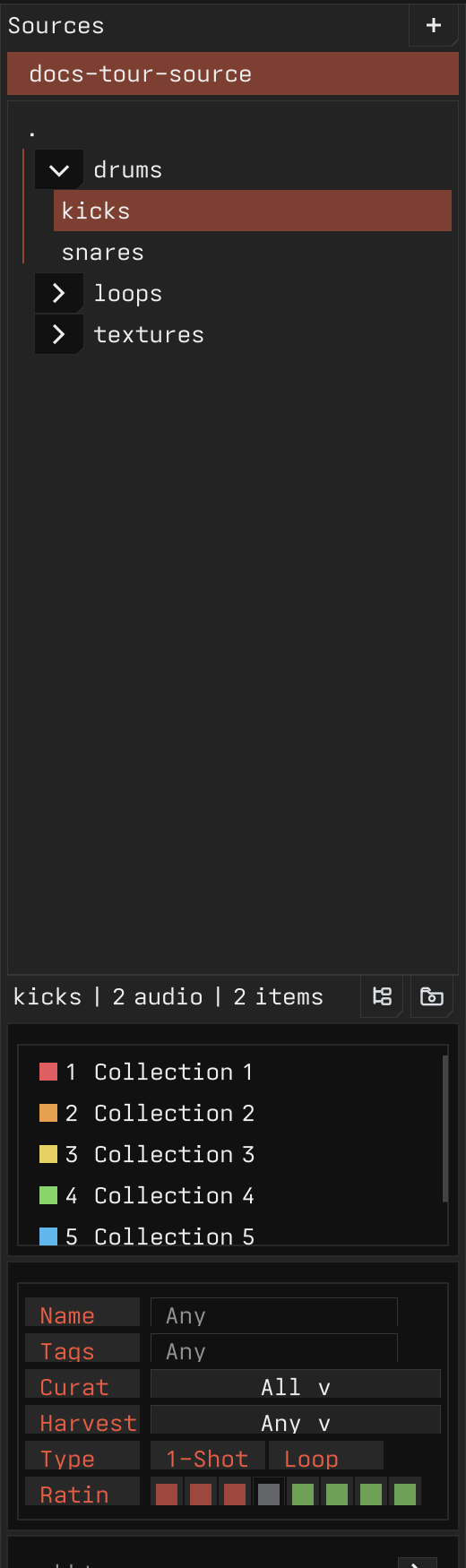
Wavecrate indexes the folder and keeps the visible browser scoped to the source and folder selections on the left.
2. Audition The List
Select a row in the sample browser and press Space to play or pause. Use Up and Down to move through the visible list.

Useful first-pass moves:
- press
]to mark a sound as Keep - press
[to mark a sound as Trash - use folder, tag, rating, collection, playback-age, similarity, and Starmap filters to narrow the list
3. Mark A Useful Region
Drag across the waveform with the primary mouse button to create a playmark selection. Use this when you want to loop, audition, copy, drag, or extract a region.

When you want an edit-specific target, create an editmark selection with the secondary mouse button. Editmarks are useful when the edit target should be separate from the play/audition target.
4. Loop, Extract, Or Copy
After marking a useful region:
- press
Lto loop the selected region - press
Eto extract it as a new WAV - press
Command-Cto copy the current waveform selection as an exported WAV clip - drag the selection handle to a folder or DAW when drag-out is supported
5. Edit Deliberately
Use waveform edit commands when the selected audio should change:
Ccrops to the selectionDtrims the selection outRreverses the selectionMmutes the selectionNnormalizes the selection or sample, depending on focus
Destructive edits can rewrite files. Wavecrate prompts before destructive edits unless Yolo mode is enabled.
6. Keep The Result Findable
Rate, tag, rename, or place extracted clips into useful folders or collections. Wavecrate is strongest when quick auditioning and small metadata decisions happen in the same pass.
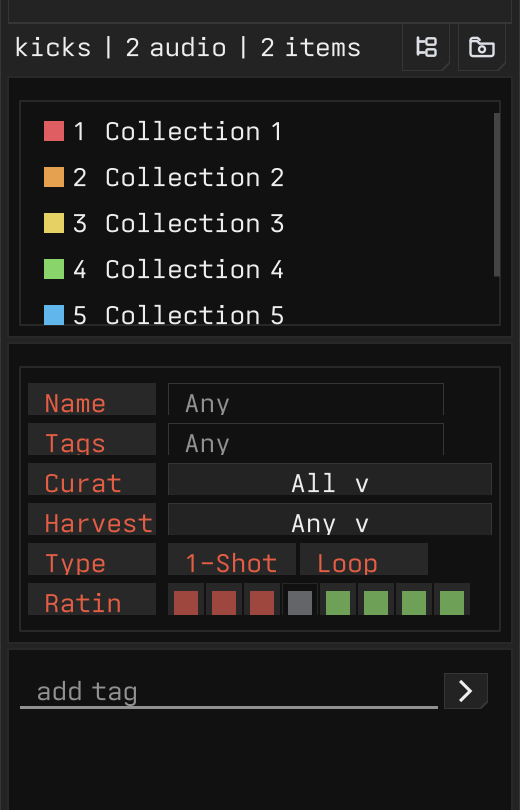
Use protected sources for original project material or long recordings that should stay safe while derived clips are created elsewhere.
Use the source, folder, sample, tag, and collection context menus for maintenance actions that are not part of the first-pass audition loop.
Browse and Audition
Wavecrate is designed for fast listening passes. Select a sample, hear it, move on, and make lightweight decisions before the creative thread disappears.
Main Browsing Surface
The main surface has three working areas:
- Sources and folders: add local sources, choose folders, and narrow the current browser scope.
- Waveform: inspect the selected sample, seek, loop, mark regions, and perform waveform edits.
- Sample browser: sort, filter, rate, tag, and move through visible samples.
Audition Quickly
Spacetoggles playback.Shift-Spacereplays from the last start point.Option-Spaceplays a random sample section.UpandDownmove through the visible rows.Shift-UpandShift-Downextend the sample selection.Escstops playback, closes transient UI, or clears selection depending on context.- The random controls can audition random sections or random listed samples when you want to break out of row order.
Narrow the List
Use the browser tools together:
- Folder selection limits the visible list to the chosen source area.
- Search filters by fuzzy text matching.
- Tag filters help separate keepers, trash, and untagged material.
- Playback-age filters surface never-played or stale sounds.
- Collections are temporary working buckets for the current session.
- Similarity search can focus the list around sounds related to the current sample.
- Starmap shows the same scoped results as a spatial similarity view when map data is available.
DAW Companion Loop
Wavecrate is meant to sit beside your DAW:
- Keep the track playing in the DAW.
- Audition candidate samples in Wavecrate.
- Mark the region that starts to fit.
- Copy or drag the selected clip into the DAW.
- Return to browsing without reorganizing folders mid-session.
Sources, Locks, and Harvest
Sources are the roots Wavecrate indexes. A source can be an ordinary sample folder, a protected project folder, or a folder that participates in the Harvest workflow.
Ordinary Sources
An ordinary source is a local folder you allow Wavecrate to index and work with directly. Wavecrate can read files, track metadata, and perform file operations you explicitly request.
Use ordinary sources for:
- dedicated sample folders
- exported one-shots
- folders you already back up
- material you are comfortable editing in place
Protected and Locked Sources
Protected sources are for original project material, long recordings, Ableton folders, field recordings, or anything where you do not want Wavecrate to casually mutate the original.
Protected behavior keeps the workflow creative while reducing risk:
- Original material stays in place.
- Derived clips are written into a writable destination.
- Harvest metadata records the relationship between the original and the derived file.
- Destructive-style actions are routed toward copies where the source role requires it.
Locked folders are stricter. Use locking when a source should be visible and auditionable but not mutated through normal edit commands.
Harvest Concepts
Harvest is Wavecrate’s way of tracking how raw material turns into reusable samples.
- Origin: the original file or recording.
- Derivative: a new file created from an origin, usually by extraction or a protected-source edit.
- Touched: the origin has been reviewed or used.
- Extracted: useful material has been pulled from the origin.
- Done or ignored: the origin no longer needs review in the current workflow.
Harvest is metadata-driven. It is not meant to replace your folder structure or force planning into markdown files.
Harvest Actions
Harvest source and sample menus include workflow actions for managing review state:
- Mark Harvest Done: marks the selected harvest item as finished.
- Ignore in Harvest: hides an item from the active harvest review flow without deleting it.
- Reset Harvest: clears the harvest review state when an item should be reconsidered.
- Show Harvest Origin: jumps from a derivative back to the original source file.
- Show Harvest Derivatives: shows clips created from the selected origin.
- Open Harvest Destination: opens the configured destination for derived clips.
When a protected source has a harvest destination, extracting a playmark can write the new clip directly to that destination and keep the origin relationship attached as metadata.
Harvest Filters
Harvest filters narrow the browser by workflow state:
- New: items that have not been reviewed.
- New + Touched: new material plus items that were already opened or acted on.
- Needs Review: items still requiring a decision.
- Touched: items that have been played, edited, or otherwise acted on.
- Has Derivatives: origins with extracted or edited derivative files.
- No Derivatives: origins without derivative clips yet.
- Done: items marked complete.
- Ignored: items intentionally skipped.
- All: the full harvest scope.
Recommended Source Strategy
- Use ordinary sources for disposable or already-curated sample libraries.
- Use protected sources for projects, long recordings, and source material you may want to revisit.
- Keep one clear writable destination for derived clips.
- Back up important folders before using destructive actions.
Sample Files and Source Operations
Wavecrate keeps source browsing, file moves, and source maintenance close to the sample list. Most file and source operations are available from the relevant context menu.
Sample Actions
Right-click a sample row to open the sample context menu.
- Reveal in Explorer: open the selected sample in the system file browser.
- Copy Path: copy the sample path.
- Duplicate Same: create a duplicate at the same playback length.
- Duplicate Double: create a duplicate with doubled playback length.
- Move to Trash: move the sample to the configured trash location or system trash behavior.
- Remove from collection: remove the sample from the active collection when the row is being viewed through a collection.
Missing collection entries show cleanup actions instead of normal file actions:
- Clean missing entry: remove the missing collection record for one file.
- Clean all missing in collection: remove all missing records from the active collection.
File Copy, Cut, and Paste
Use file shortcuts when the sample browser owns the current interaction:
Command-Ccopies the selected sample files, unless a waveform play selection is the active copy target.Command-Xcuts selected files for a move.Command-Vpastes cut files into the selected folder.Command-Aselects all listed samples.DeleteorBackspacedeletes the selected item.
Wavecrate preserves source safety rules during moves. If a target source is protected, Wavecrate prompts before routing the operation through the primary destination.
Source Actions
Right-click a source in the Sources list to open source actions.
- Open in Explorer: open the source folder in the system file browser.
- Copy Path: copy the source root path.
- New Folder: create a folder under the source root.
- Protect Source or Unprotect Source: change whether Wavecrate treats the source as protected original material.
- Set as Primary or Clear Primary: choose the primary writable destination used by protected-source workflows.
- Refresh Source: rescan the source folder tree.
- Process Source: queue source processing work such as cache and similarity preparation.
- Remove Source: remove the source from Wavecrate.
Folder Actions
Right-click a folder in the sidebar to open folder actions.
- Open in Explorer: open the folder in the system file browser.
- Copy Path: copy the folder path.
- New Folder: create a child folder.
- Rename Folder: rename the folder.
- Lock Folder, Lock Folder Here, or Unlock Folder: control whether the folder can be changed by normal file operations.
- Delete Folder: delete the folder after confirmation.
Folder locks are useful when a subtree should stay visible for auditioning but should not be modified during a fast browsing pass.
Move Conflicts
When a move would collide with an existing file or folder, Wavecrate opens a conflict prompt. Choose the resolution for the current item, or apply the same resolution to the remaining conflicts when that option is available.
Use this prompt deliberately. File moves and deletes affect files on disk.
Metadata, Tags, and Collections
Wavecrate supports lightweight metadata so a fast audition pass can leave useful traces without requiring a permanent folder move.
Ratings
Ratings are a quick keep-or-trash signal for sample rows.
]raises the selected sample rating.[lowers the selected sample rating.- Rating filters in the sidebar narrow the visible list.
Use ratings when you want a fast pass through a folder before deciding whether samples deserve tags, collections, or edits.
Tags
Tags are durable labels for finding sounds again.
- Use the tag input in the sidebar to add tags to the selected sample.
- Type in the tag field to use autocomplete.
Escapecancels tag entry or tag completion.UpandDownmove through tag completion suggestions.DeleteorBackspacedeletes the selected tag token.9toggles theone-shottag on selected samples.0toggles thelooptag on selected samples.
Right-click a tag token to delete it from the selected sample.
Name and Tag Filters
The sidebar includes text filters for sample names and tags.
- Name: filters rows by fuzzy filename or display-name text.
- Tags: filters rows by tag text.
These filters combine with folders, ratings, collections, playback type, Harvest filters, similarity search, and Starmap.
Collections
Collections are temporary color buckets for a working pass. They let you gather candidates without moving the original files.
1through6toggles selected samples in the matching collection.- Click a collection to focus it.
- Press
Escapewhile collection focus is active to return to normal browsing. - Drag selected samples onto a collection to add them.
- Right-click a collection to clear broken files from that collection.
Collection names can be renamed in the collection panel. Collection membership is metadata; it does not move the sample on disk.
Disk Names and Labels
The sample browser can switch between disk filenames and metadata labels.
- Disk shows the file name from disk.
- Label shows the metadata label when one is available.
Use disk names when checking actual file organization. Use labels when you want the browser to reflect the musical or production name you assigned inside Wavecrate.
Similarity and Starmap
Similarity tools help you move by sound instead of only by folder name, filename, or tag.
Prepare Similarity Data
Similarity search and Starmap depend on source processing. Use Process Source from the source context menu when a source needs analysis.
Large sources can take time to process. Wavecrate keeps browsing responsive while processing work runs in the background.
Similarity Search
Similarity search uses the selected sample as the reference sound.
- Prepare similarity data for the source first.
- Select a sample to use as the reference.
- Use similarity search to focus the list around related sounds.
- Combine similarity with folder scope, search text, tags, ratings, collections, playback type, and Harvest filters.
When similarity results are active, the sample browser can show similarity scores and aspect controls.
Similarity Aspects
The browser header exposes similarity aspect controls when similarity data is available.
- Overall: balanced similarity.
- Spectrum: broad frequency-shape similarity.
- Timbre: tone-color similarity.
- Pitch: pitch or tonal-center similarity where available.
- Amp: amplitude and envelope similarity.
- Weight: toggles weighted aspect behavior.
Use aspects to steer the search. For example, turn toward spectrum or timbre when looking for a similar color, or amplitude when envelope shape matters more.
Starmap
Starmap shows the current scoped result set as a spatial similarity view.
- The Starmap button switches between row list and map view.
- The search field filters the same scoped results shown in the map.
- Zoom controls change map scale.
- The target button focuses the selected node.
- The reset button returns the map viewport to its default framing.
Ffocuses the selected Starmap node.
Each point represents a listed sample. Nearby points are more related than distant points within the current Starmap layout.
Starmap Auditioning
Use Starmap when you want to scan related sounds as clusters.
- Click a point to select and audition the sample.
- Drag through points to audition nearby sounds quickly.
- Use the list toggle to return to rows without losing source, folder, search, or filter context.
The status line shows how many current results have Starmap positions. If the count is lower than the listed total, process the source and wait for analysis to finish.
Playmarks, Editmarks, and Edits
Wavecrate has two selection concepts on the waveform: playmarks for auditioning and handoff, and editmarks for destructive editing.
Playmarks
Drag with the primary mouse button to create a playmark selection.
Use playmarks for:
- auditioning a short region
- looping a useful moment
- extracting a clip
- copying or dragging a selected region to another app
Playmarks are fast and musical. They are the default selection you make while listening.
Editmarks
Drag with the secondary mouse button to create an editmark selection.
Use editmarks when you want the selected range to be the explicit target for edits such as crop, trim, mute, reverse, fade, or normalize.
When both a playmark and editmark exist, edit commands generally prefer the editmark because it is the more deliberate editing target.
Common Edits
- Extract: write the selected region as a new WAV.
- Crop: keep the selected region and remove everything else.
- Trim: remove the selected region and close the gap.
- Mute: silence the selected region without changing duration.
- Reverse: reverse the selected region in place.
- Fade: fade the selected region to silence from either direction.
- Normalize: adjust level for the selected region or file.
Destructive edits prompt for confirmation unless Yolo mode is enabled. Keep backups when working on important material.
Editmark fade and gain handles can preview changes before they are applied. Press Enter or click Apply to commit pending editmark effects.
Visual Feedback
After edits, the waveform should reload or update so the visible audio reflects the change. If the visual state looks stale after an edit, try selecting the file again or reopening the source, then include the exact action sequence and logs when reporting it.
Advanced Waveform Tools
The waveform toolbar contains controls for tighter edits, loop checking, and analysis-assisted browsing.
Zoom and View
Zzooms to the play selection.Xzooms out when the waveform is zoomed in.Shift-Xzooms out with a silence margin.- Use the waveform drag handle to drag the loaded sample out when drag-out is supported.
The same X key can mark a sample and advance when the waveform is already fully zoomed out and the browser is in that browsing context.
Editmark Effects
Editmarks are the deliberate target for edit effects.
- Drag with the secondary mouse button to create an editmark.
- Use editmark handles to adjust fade and gain shape.
- Press
Enteror click Apply to apply pending editmark effects. - Use
Command-Zand redo shortcuts to step through committed edit transactions.
Preview changes while dragging are grouped into one undoable action when the gesture is committed.
Zero-Crossing Snap
Zero-crossing snap helps place selection edges on quieter waveform crossings.
Enable it when trimming clicks or making loop boundaries. Disable it when you need fully free selection placement.
Similar Sections
Similar Sections looks for regions in the loaded waveform that resemble the current play selection.
- Create a play selection.
- Toggle Similar Sections from the toolbar.
- Review highlighted matching regions in the waveform.
Use it to find repeated hits, loops, or similar phrases inside longer recordings.
Beat Guides and Metronome
Beat guides draw divisions over the waveform.
- Toggle beat guides from the toolbar.
- Set the beat guide count in the number field.
- Toggle the metronome when you want click feedback during playback.
Beat guides are visual timing aids. They do not turn Wavecrate into an arrangement editor.
Random Playback Controls
The random toolbar button supports several audition styles.
- Click random to play a random section.
- Shift-click random to play a random listed sample range.
- Command-click random to toggle sticky random playback.
Option-SpaceorControl-Spaceplays a random sample section.
Sticky random playback makes Space keep choosing random sections until you turn sticky random off.
Settings
Wavecrate settings live in the top bar. Settings changes apply to the current app profile.
Volume and Tooltips
The volume slider controls preview volume for sample audition playback.
The help tooltips button turns hover help on or off. When enabled, hover controls to see what they do.
Audio Engine
Open the Audio Engine panel from the top bar to inspect or change playback output.
- Backend: choose the available audio host or backend.
- Output: choose the playback output device.
- Sample Rate: choose the playback sample rate, or use the device default when available.
If an audio device disappears or cannot be opened, Wavecrate shows the audio error in this panel.
General
Open General settings for file-safety and maintenance controls.
- Trash Folder: choose where Wavecrate should send files when using trash-style actions.
- Clear: remove the configured trash folder.
- Clear Rebuildable Caches: remove caches Wavecrate can rebuild, such as generated preview/cache data.
Choose the trash folder deliberately. Trash and delete actions can affect files on disk.
Release Updates
When Wavecrate knows a newer release is available, the top bar shows the release update control. Use it to open the release download page.
Screenshots and Feature Tour
This page is the starter visual tour for new users. The focused screenshots below show the current Wavecrate app shell with a small sample source loaded.
Main Window
The main window shows the core working loop:
- Choose a source and folder scope.
- Browse the visible sample rows.
- Inspect the selected sample in the waveform.
- Use filters, ratings, tags, and collections to narrow the library.
- Extract or edit selected audio regions.
Sources and Folders
Use the left side to add source roots, pick folders, adjust collection and filter controls, and keep browsing local to the material you care about right now.
The sidebar keeps the current library scope visible. A selected folder narrows the sample browser without changing the underlying files, while the lower controls let you refine the visible rows.
Waveform and Region Editing
The waveform is where playback, looping, playmarks, editmarks, extraction, and destructive edits meet.
Use this area to seek, loop, create playmark selections, create editmark selections, and confirm whether an edit visually changed the selected audio.
Sample Browser and Filters
The sample browser combines rows, ratings, collections, search, tags, and playback-age filters so you can work through a large library without losing context.
Rows stay tied to the current source and folder scope. Ratings, file type, size, last-played information, and disk paths help you make decisions without opening a file manager.
Starmap
Starmap shows the current browser results as a spatial map, so similar samples can be scanned as clusters instead of only as rows.
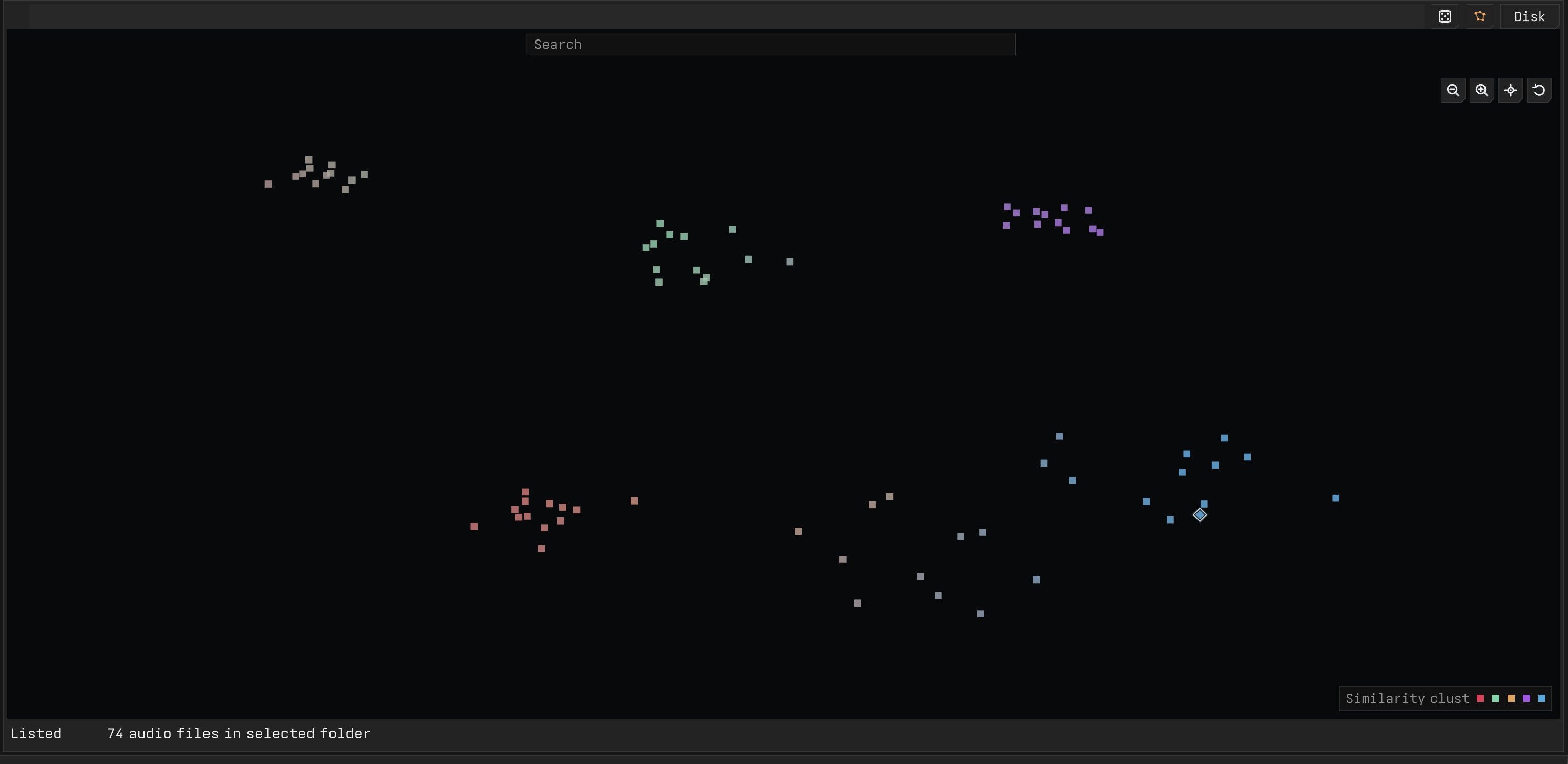
Use it when you want to audition nearby sounds, compare groups of related samples, or move back to the list without losing the active source, folder, search, or filters.
Metadata, Collections, and Tags
Collections, filters, and tags support fast triage without requiring a permanent folder move for every idea.
Use collections for temporary working buckets, tags for durable labels, filters for narrowing a pass, and ratings when you want a simple keep-or-reject pass.
Keyboard Shortcuts
Wavecrate shortcuts are focus-aware. A key can mean one thing in the waveform, another in the sample browser, and nothing while a text field owns keyboard input.
Press Command-/ in the app to open the current context-aware shortcut overlay.
Playback and Browser
| Shortcut | Action |
|---|---|
Space | Play the selected sample, or play a random section while sticky random playback is active |
Shift-Space / Right | Play from the current play start |
Option-Space / Control-Space | Play a random sample section |
Command-Left / Command-Right | Step through playback history |
Up / Down | Move browser selection |
Shift-Up / Shift-Down | Extend sample selection |
Command-Up / Command-Down | Move focus without changing marks |
Left | Collapse the selected folder |
Command-A | Select all listed samples |
Command-C | Copy the play selection or selected file |
Command-X | Cut selected files |
Command-V | Paste cut files into the selected folder |
N | Normalize selected samples, or create a subfolder when no sample is selected |
F2 / Command-R | Rename the selected item |
Delete / Backspace | Delete the selected item |
Waveform
| Shortcut | Action |
|---|---|
Enter | Apply editmark edits |
E | Extract the play selection |
Command-E | Extract and trim the selection |
W | Open the waveform context menu |
Z | Zoom to the play selection |
X | Zoom out when the waveform is zoomed, or mark and advance in browser context |
Shift-X | Zoom out with a silence margin |
C | Crop to the selection |
D | Trim the selection out |
R | Reverse the selection |
M | Mute the selection |
L | Toggle loop playback |
Command-C | Copy the current waveform selection as an exported WAV clip |
Ratings, Collections, and Tags
| Shortcut | Action |
|---|---|
[ | Lower the selected sample rating |
] | Raise the selected sample rating |
1-6 | Toggle the selected sample in a collection |
` | Focus the tag input |
9 | Tag selected samples as one-shot |
0 | Tag selected samples as loop |
Escape | Cancel tag entry or completion |
Up / Down | Move through tag completions while the tag input is active |
Delete / Backspace | Delete the selected tag when tag focus is active |
Starmap
| Shortcut | Action |
|---|---|
F | Focus the selected Starmap node |
Transactions and Help
| Shortcut | Action |
|---|---|
Command-Z | Undo |
Command-Shift-Z / Command-Y | Redo |
Command-Shift-\ | Open the transaction list |
Command-/ | Toggle shortcut help |
Esc | Close transient UI, stop playback, or clear selection depending on context |
Troubleshooting
Find Logs
Use Options -> Open config folder and look under .wavecrate/logs.
Wavecrate alpha app builds currently support macOS and Windows. On a normal supported install, the config folder is:
- macOS:
~/Library/Application Support/.wavecrate/ - Windows:
%APPDATA%\\.wavecrate\\
FAQ
Is Wavecrate a DAW?
No. Wavecrate sits beside a DAW. It helps you find, cut, edit, and curate sample files so the DAW can stay focused on arrangement and production.
Does Wavecrate upload my samples?
No. Wavecrate works with local folders and ordinary files.
Can Wavecrate change files on disk?
Yes, when you choose actions that move, rename, delete, normalize, crop, trim, mute, reverse, or otherwise write files. Keep backups for important material.
What is the difference between a playmark and an editmark?
A playmark is the fast musical selection used for auditioning, looping, extraction, and handoff. An editmark is the deliberate selection used for destructive editing.
What are protected sources for?
Use protected sources for original recordings, project folders, or anything that should not be casually modified. Wavecrate can still create useful derived clips from protected material.
What is Harvest?
Harvest tracks the relationship between raw source material and derived clips. It helps you remember which originals were touched, which files produced useful samples, and where derived material went.
Why does similarity search need preparation?
Similarity search relies on analysis and embedding data. Wavecrate needs to prepare that data before it can find related sounds or draw a useful map.
A source disappeared. What should I check?
The drive or folder may be disconnected. Reconnect it, then use source sync or remap the source if the path changed.
Why do new files not appear?
Run source sync from the source context menu. Use hard sync when ordinary sync does not pick up external changes.
Why is similarity search empty?
Prepare similarity data for the source first. Similarity search depends on analysis, embeddings, and clustering work that can take time on large folders.